
Dashboard and Projects
This guide covers the Dashboard and Projects sections of Lingora — where you monitor translation progress at a glance and manage the projects that organize your Salesforce metadata translation work.
Dashboard Overview
URL: /dashboard
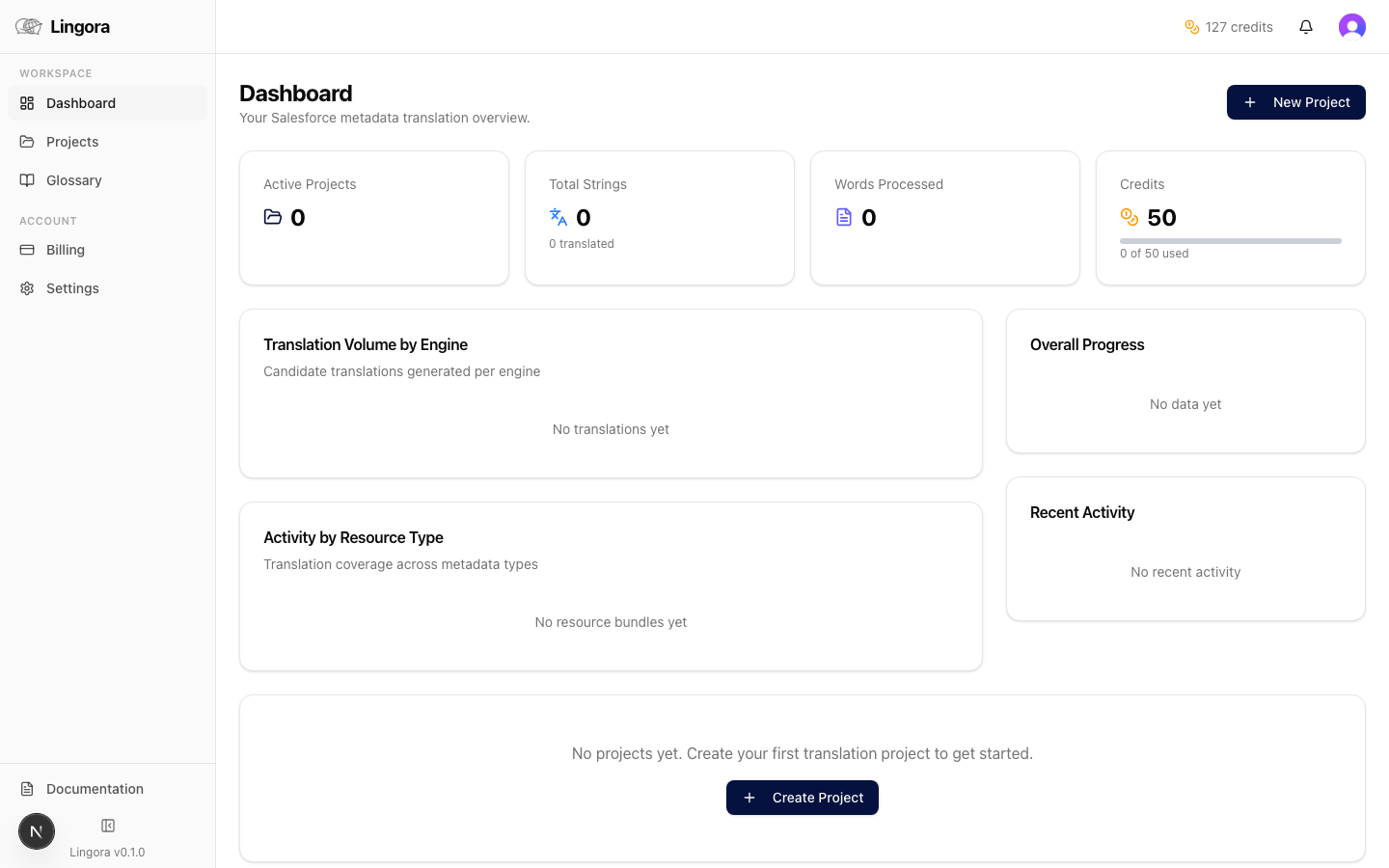
The Dashboard is the first page you see after signing in. It gives you a real-time summary of activity across all your projects, engine usage, and credit balance.
Stat Cards
Four cards across the top of the page provide an at-a-glance snapshot:
| Card | What it shows |
|---|---|
| Active Projects | Number of projects not in an archived state |
| Total Strings | Cumulative count of translatable units across all projects |
| Words Processed | Total word count that has passed through a translation engine |
| Credit Balance | Remaining Lingora LLM credits for your organization |
Engine Breakdown Chart
A segmented horizontal bar chart shows the proportion of translation candidates generated by each engine across your account:
- DeepL — candidates produced by the DeepL adapter
- Lara — candidates produced by the Lara adapter
- Google — candidates produced by the Google Translate adapter
- Lingora LLM — candidates produced by Lingora's LLM wrapper (consumes credits)
- BYOK — candidates produced using your own API keys for external providers
Hover over any segment to see the raw candidate count for that engine.
External API Usage Card
If you have configured Bring Your Own Key (BYOK) engines, this card shows character consumption broken down by provider (for example, OpenAI or Anthropic). Use this to monitor spend against your own API quotas independently of Lingora credits.
Resource Type Activity
A breakdown of translation coverage organized by Salesforce metadata type:
- Custom Labels
- Fields (CustomObjectTranslation field labels and help text)
- Picklists (picklist value labels)
- Flows (Flow screen and choice labels)
- Quick Actions, Custom Tabs, and other supported types
Each row shows the number of strings translated versus the total for that resource type, giving you a clear picture of which areas of your org still need attention.
Overall Progress
A large percentage figure accompanied by a stacked progress bar shows the aggregate translation state across all active projects:
| State | Meaning |
|---|---|
| Approved | Reviewed and accepted by a human reviewer |
| Translated | Engine candidate produced but not yet reviewed |
| Needs Review | Flagged by a reviewer or a low-confidence engine output |
| Pending | No candidate has been generated yet |
Recent Activity
A chronological timeline of translation events, with status icons for:
- Translation job completions
- Translation Memory (TM) matches applied
- Reviewer approvals or rejections
- Retrieve and deploy operations
Each entry links to the relevant bundle or project so you can jump directly to the work in question.
Inline Project Preview
The first active project is shown inline on the Dashboard with direct links to its bundles, so you can resume in-progress work without navigating to the Projects list.
Projects List
URL: /projects
The Projects list shows all translation projects for your organization in a card grid.
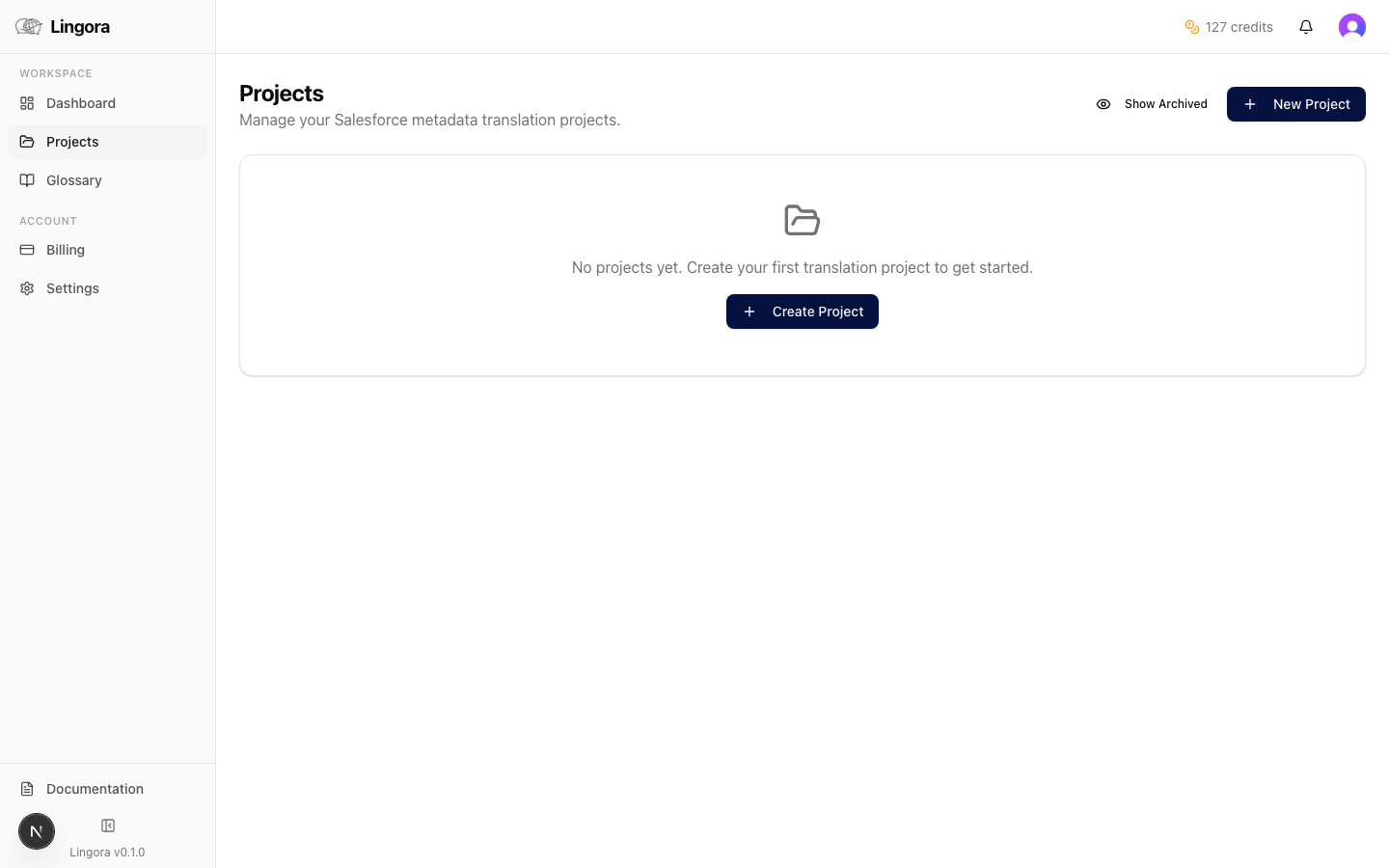
Project Cards
Each card displays:
- Project name
- Source language → Target languages (e.g.,
en-US → es, fr, de) - Bundle count — number of resource type / language combinations in the project
- Progress bar — approved units as a proportion of total units
- Actions — Archive or Open
Filtering and Controls
- Show archived — toggle this switch to include archived projects in the grid. Archived projects are visually distinguished from active ones.
- + New Project — button in the top-right corner to start the project creation wizard.
Creating a New Project
Click-path: Projects > + New Project
The wizard walks you through three steps.
Step 1 — Project Details
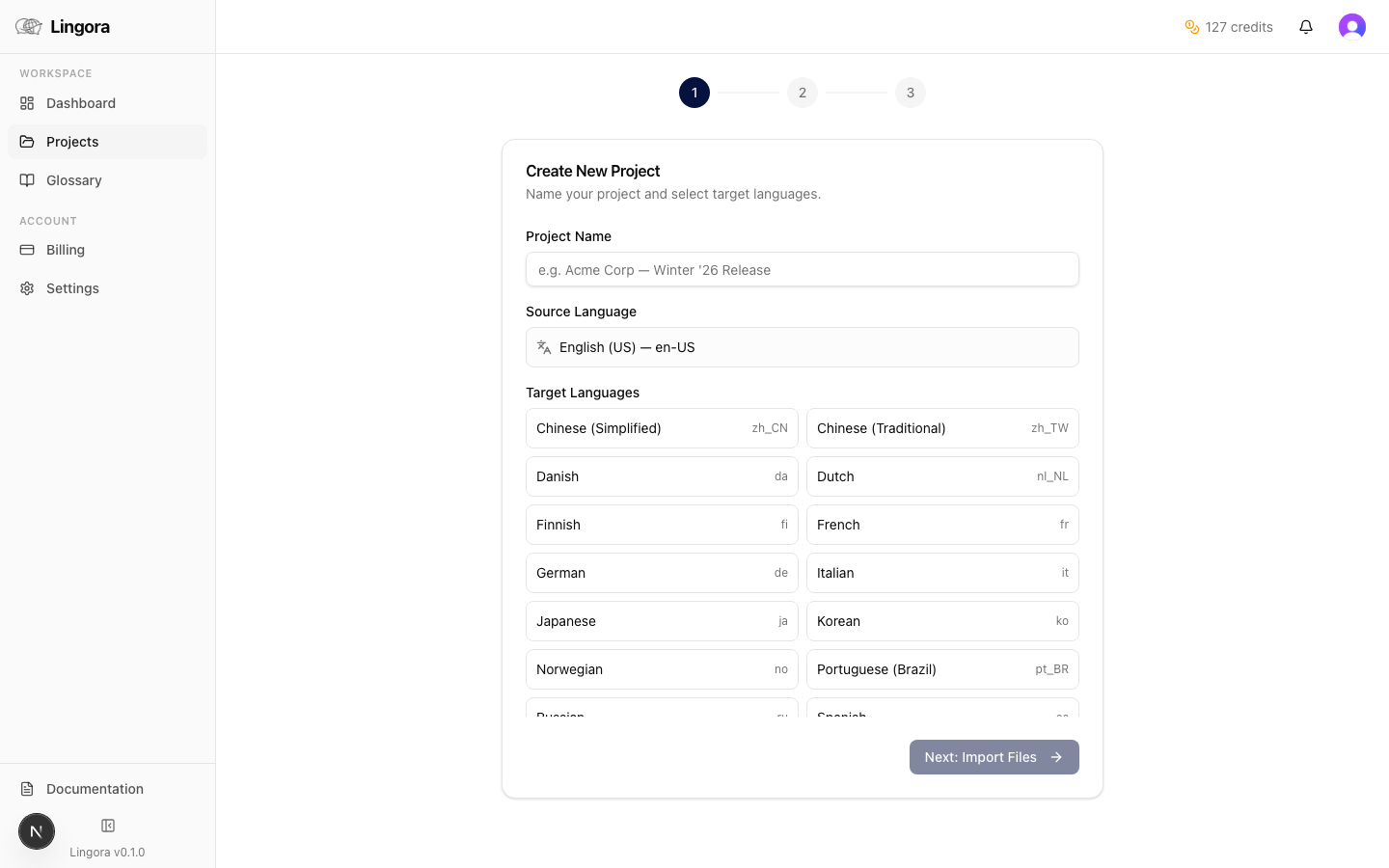
- Enter a Project Name.
- Source language is fixed to
en-US(Salesforce Translation Workbench always uses US English as the source). - Select one or more Target Languages from the multi-select list (e.g.,
es,fr,de,ja). - Optional — Connect to Salesforce toggle (available on Studio and Partner tiers): enable this if you want Lingora to retrieve metadata directly from your Salesforce org rather than uploading files manually. See Salesforce Connected Flow below.
Step 2 — Upload Files
- Drag and drop, or click the upload zone to select, one or more translation files.
- Accepted formats: XLIFF (
.xlf,.xliff) and STF (.stf)
- Accepted formats: XLIFF (
- Lingora parses each file and displays:
- The number of translatable strings detected
- Any structural warnings (malformed units, missing target elements, unrecognised namespaces)
- Review the warnings. Minor warnings do not block creation; severe parse errors must be resolved before proceeding.
Step 3 — Review and Create
A summary screen shows:
- Project name
- Source and target languages
- Total string count across all uploaded files
Click Create Project to finalize. Lingora stores the files, creates bundles for each resource type and language combination, and redirects you to the Project Detail page.
Salesforce Connected Flow (Studio and Partner)
Click-path: Projects > + New Project > enable Connect to Salesforce
When the Salesforce toggle is on, the upload step is replaced by a metadata retrieve step:
- Step 1 — Same as above, but target languages are automatically filtered to match the languages enabled in your connected Salesforce org.
- Step 2 — Confirm Metadata Retrieve — Lingora calls the Salesforce Metadata API to pull the latest translation files from your org. You will see a progress indicator while the retrieve job runs. No manual file upload is required.
- Lingora creates bundles automatically from the retrieved metadata types:
| Metadata Type | Contents |
|---|---|
| Translations | Custom Labels, Flow definitions, Quick Actions, Custom Tabs |
| CustomObjectTranslation | Field labels, help text, picklist values, record types |
| GlobalValueSetTranslation | Global picklist value labels |
| StandardValueSetTranslation | Standard picklist value labels |
For full details on connecting your Salesforce org, see Salesforce Integration.
Project Detail Page
Click-path: Projects > click a project card
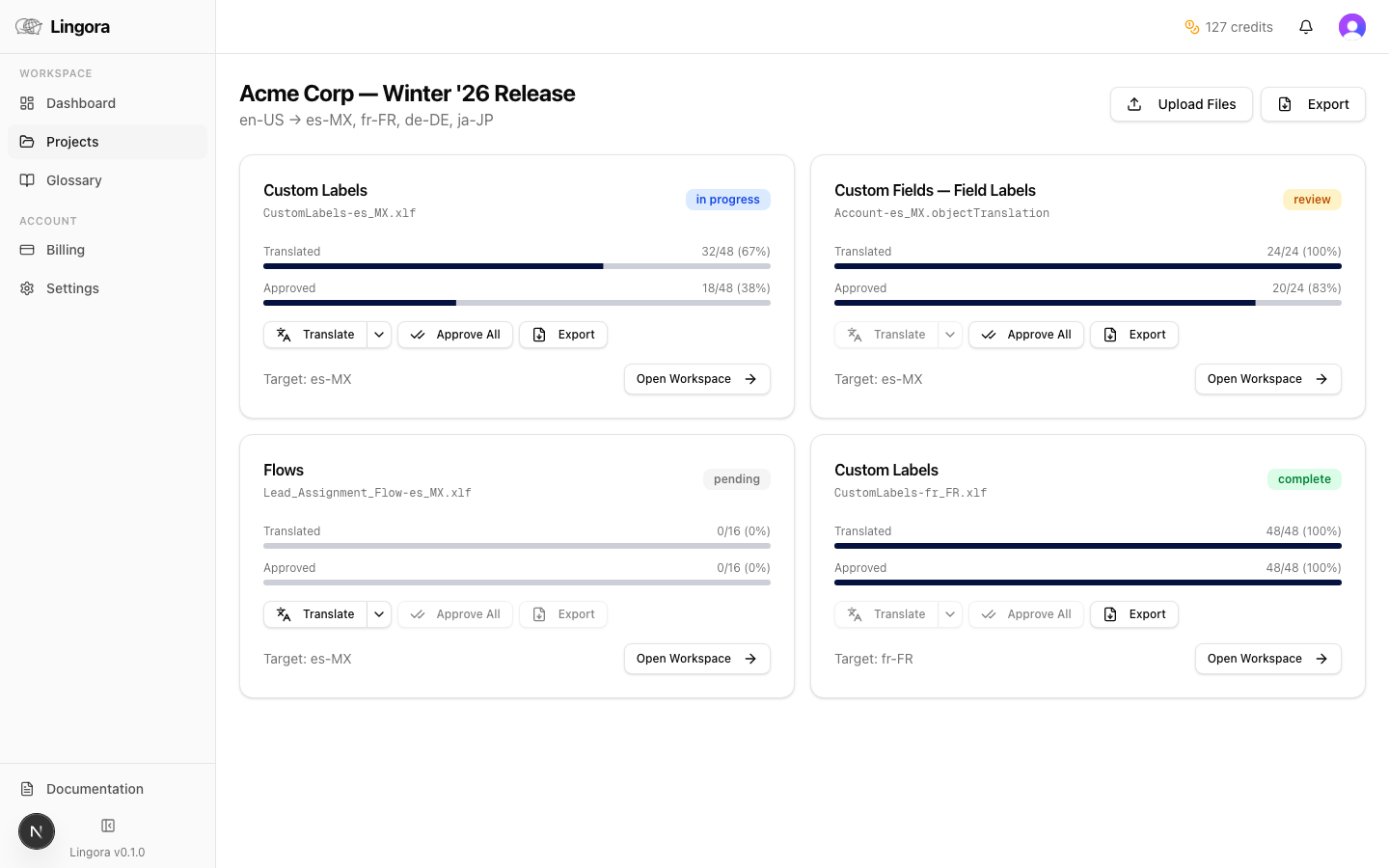
Bundle Grid
The Project Detail page organizes your work into bundles — each bundle represents one resource type translated into one target language (for example, Custom Labels in French).
Each bundle card shows:
- Resource type (Custom Labels, Fields, Picklists, etc.)
- Target language
- String count
- Progress bar (pending → translated → needs_review → approved)
Click a bundle card to open the Translation Workspace for that specific resource type and language combination.
Uploading Additional Files
Use the Upload Additional Files button to add more XLIFF or STF files to an existing project. New strings are merged into the appropriate bundles; strings already present are not duplicated.
Metadata Job Monitor
For projects connected to Salesforce, a live job monitor at the top of the page shows the status of any active retrieve or deploy operations. Status updates poll automatically, and toast notifications appear when a job completes or fails — so you do not need to refresh the page manually.
Project Actions
| Action | Description |
|---|---|
| Retrieve from Salesforce | Pull the latest translation metadata from the connected org (Connected App mode only) |
| Deploy to Salesforce | Push all approved translations back to the connected org (Connected App mode only) |
| Export | Navigate to the export page to download reassembled XLIFF or STF files |
Pending Imports
If a file upload was interrupted, a Pending Imports banner appears at the top of the page. Click Resume to retry the import without re-uploading the file.
Managing Projects
Archive a Project
On a project card in the Projects list, click the Archive icon. The project is immediately hidden from the main grid.
Archiving is non-destructive — all bundles, strings, and translation history are preserved.
Show Archived Projects
Toggle the Show archived switch on the Projects list page to reveal archived projects alongside active ones. Archived cards are visually dimmed to distinguish them.
Restore a Project
With the archived view enabled, click the Restore icon on an archived project card to return it to active status.
Bundle Navigation
Bundles are the primary unit of work in Lingora. They connect a specific Salesforce resource type to a target language and track translation state at the string level.
Translation States
Each string in a bundle moves through the following states:
| State | Description |
|---|---|
| Pending | No translation candidate has been generated |
| Translated | An engine has produced a candidate; awaiting human review |
| Needs Review | Flagged for attention (low confidence, reviewer comment, or manual flag) |
| Approved | A reviewer has accepted the translation; ready for export |
Progress bars on bundle cards and project cards reflect these states so you can track completion at every level of the hierarchy.
Related Guides
- Getting Started — first-time setup and account configuration
- Translation Workspace — reviewing and approving translation candidates
- Export and Deployment — exporting finished translations and deploying to Salesforce
- Salesforce Integration — connecting your Salesforce org to Lingora