
Settings & Engine Configuration Guide
The Settings page is where you connect Lingora to your Salesforce org, store API keys for translation engines, and configure which engine handles which type of Salesforce metadata. This guide covers everything on the Settings page in the order you'll typically encounter it.
Click-path: Sidebar > Settings
Salesforce Connection
Availability: Studio and Partner tiers only. Free and Pro users can upload and download files manually — direct Salesforce connectivity requires a Studio or Partner subscription.
The Salesforce Connection section appears at the top of the Settings page. It shows the current connection state and provides the controls to connect or disconnect.
Connection Status Indicator
A colour-coded status badge shows the state of your Salesforce connection at a glance:
| Status | Colour | Meaning |
|---|---|---|
| Active | Green | OAuth token is valid; Lingora can retrieve and deploy metadata |
| Inactive | Grey | No connection configured |
| Error | Red | Token expired or revoked; reconnection required |
When the connection is Active, the connected org's instance URL is displayed beneath the badge (e.g., https://yourorg.my.salesforce.com).
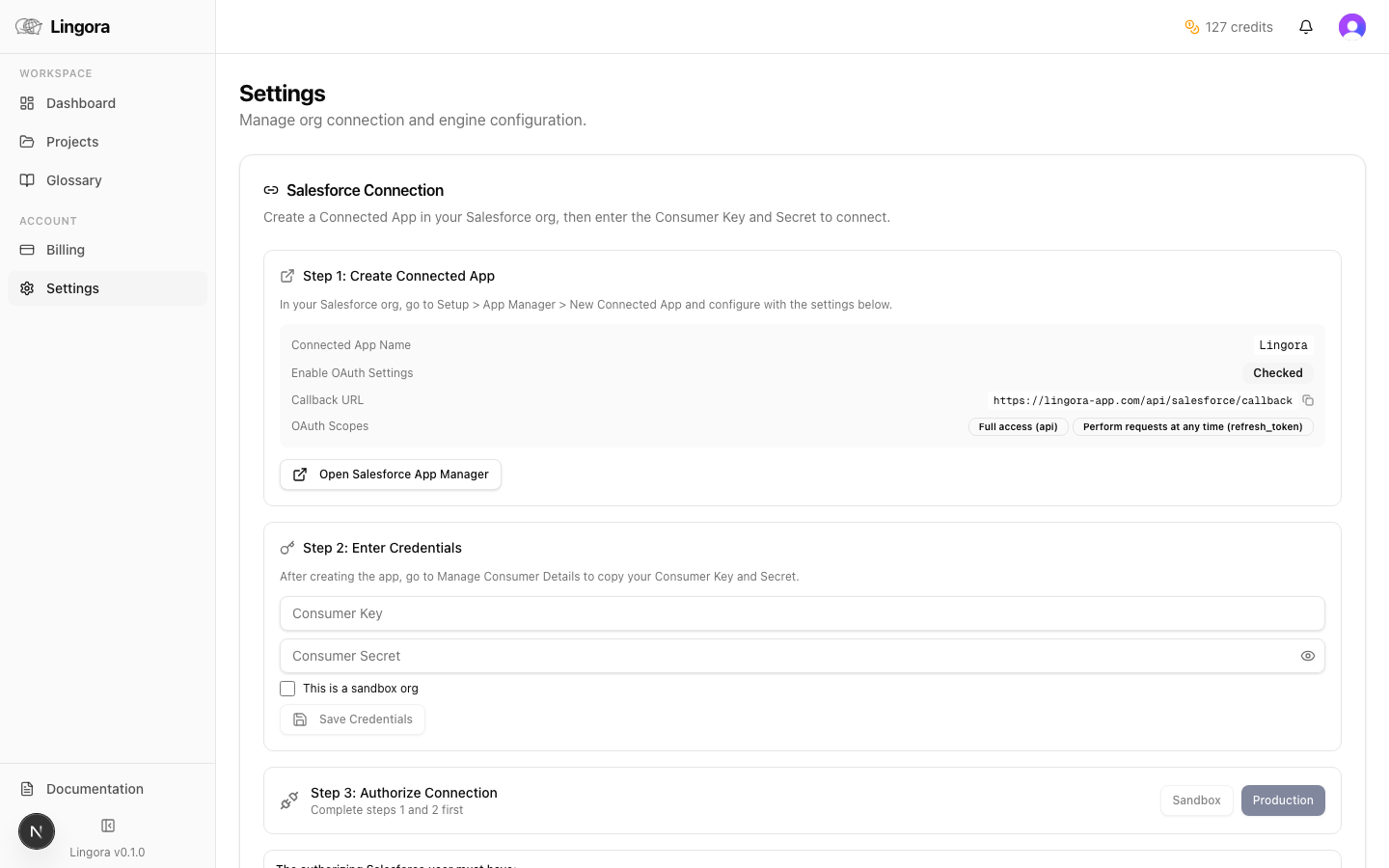
Setting Up a Connected App in Salesforce
Before you can connect Lingora to your org, you need to create a Connected App (or External Client App) in Salesforce Setup to authorise the OAuth flow.
- In Salesforce Setup, search for App Manager and click New Connected App (or New External Client App in newer orgs).
- Fill in the basic information (name, contact email).
- Enable OAuth Settings.
- In the Callback URL field, paste the callback URL displayed on the Lingora Settings page. The URL is shown in a read-only field with a copy button — click the copy button to avoid typos.
- Under Selected OAuth Scopes, add the following:
api— required to call the Metadata APIrefresh_token/offline_access— required for persistent access without requiring re-authorisation on every session
- Save the Connected App. Salesforce may take a few minutes to activate it.
- Copy the Consumer Key (Client ID) and Consumer Secret from the Connected App detail page.
User permissions required: The Salesforce user who authorises the connection must have the following permissions:
- API Enabled
- Modify Metadata Through Metadata API Functions
- Customize Application
Connecting to Salesforce
Once your Connected App is ready:
- On the Lingora Settings page, enter your Consumer Key and Consumer Secret in the provided fields.
- If you are connecting to a sandbox, toggle the Sandbox switch on before proceeding.
- Click Connect to Salesforce. You will be redirected to the Salesforce login page.
- Log in with the user that has the required permissions (see above).
- Review the OAuth permission request and click Allow.
- Salesforce redirects you back to Lingora. The status badge updates to Active and the instance URL appears.
Lingora stores only the encrypted OAuth tokens — never your Consumer Secret in plain text.
Disconnecting
To remove the Salesforce connection:
- Click the Disconnect button on the Settings page.
- Confirm in the dialog that appears.
The stored tokens are deleted. You can reconnect at any time by following the steps above.
Engine Credentials (BYOK)
Click-path: Sidebar > Settings > scroll to Engine Configuration
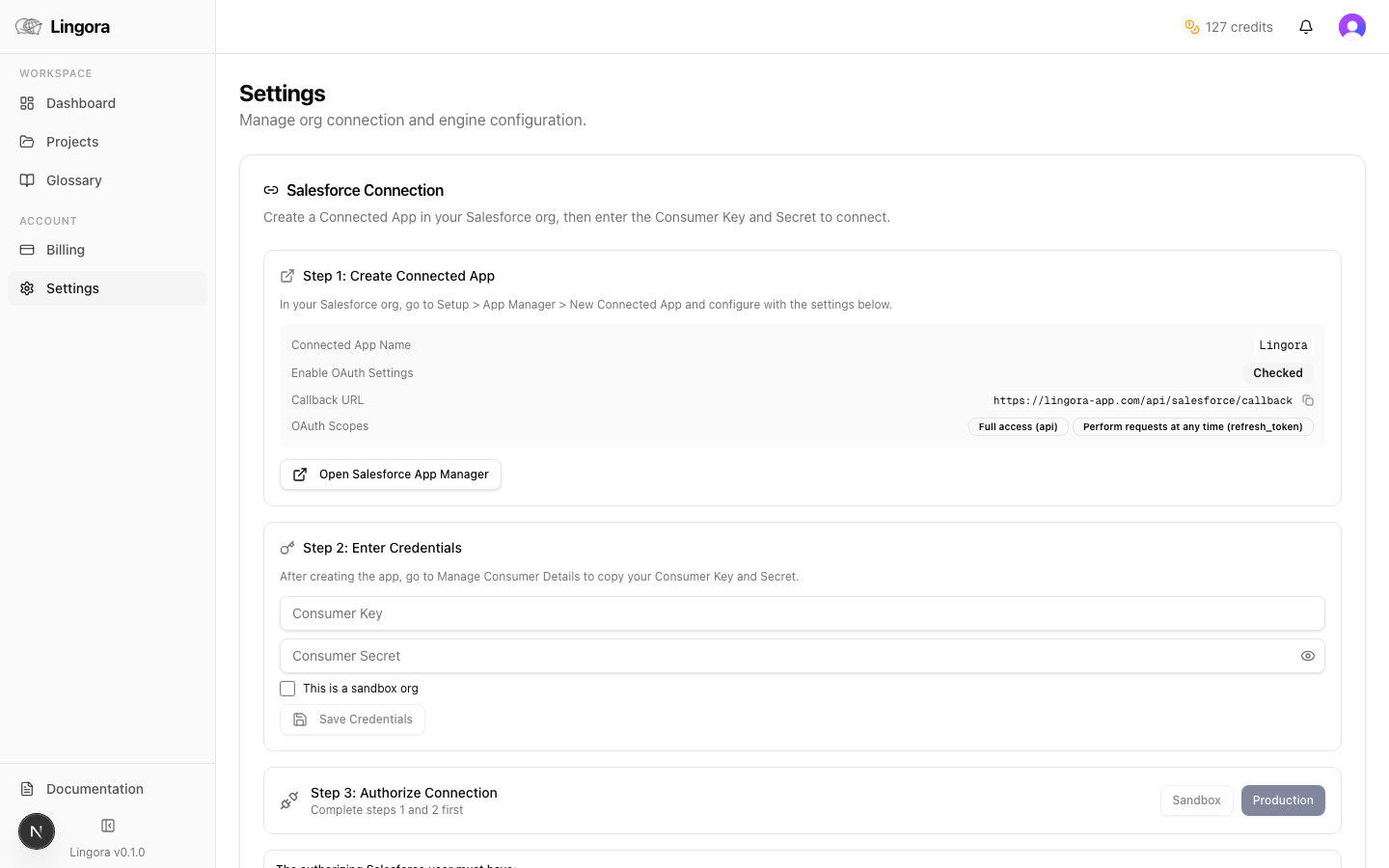
The Engine Configuration section shows a card for each supported translation engine. BYOK (Bring Your Own Key) engines use your own provider API keys — Lingora encrypts and stores them server-side, using them only at the moment of a translation call.
BYOK engines consume zero Lingora credits. You are billed directly by your provider (DeepL, Google, etc.) based on your usage with them.
Lingora LLM
The Lingora LLM card is read-only. It uses Lingora's own Anthropic-powered translation model, billed against your Lingora credit balance. No API key is required or accepted here — credits are managed on the Billing page.
DeepL, Google Translate, Lara, OpenAI BYOK, Anthropic BYOK
Each of these engines has an identical card layout with the following actions:
| Action | Description |
|---|---|
| Enter API key | Type or paste your key into the input field |
| Save | Encrypts and stores the key. The input field clears after saving — the key is never shown in full again. |
| Peek | Reveals a masked version of the stored key with only the last 4 characters visible, so you can confirm which key is active without exposing the full value. |
| Delete | Permanently removes the stored key. The engine becomes unavailable for routing until a new key is saved. |
Security note: API keys are AES-256 encrypted at rest and decrypted only server-side at the moment of an engine call. They are never sent to the browser or included in logs.
Which engines should I configure?
You only need to configure the engines you intend to use. A practical starting setup:
- Add a DeepL key for high-quality, fast neural translation of most resource types.
- Add Google Translate for broad language coverage where DeepL is unavailable.
- Rely on Lingora LLM for complex strings that benefit from Salesforce-aware AI translation and multi-candidate review.
Per-Resource-Type Engine Routing
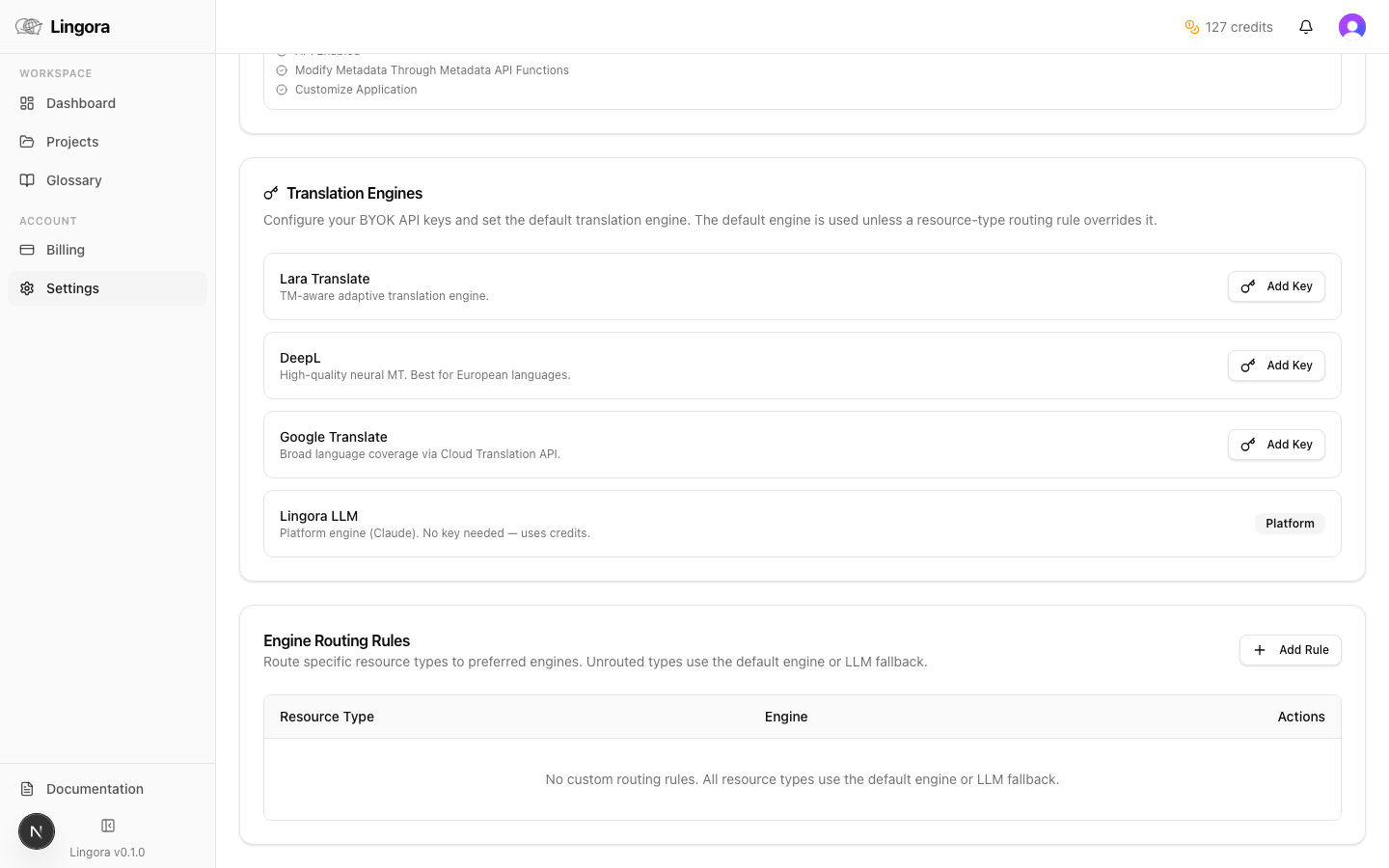
Below the credential cards is the Engine Routing grid. This lets you assign a specific translation engine to each Salesforce resource type, giving you precise control over cost, quality, and speed for different kinds of metadata.
How the grid works
Each row in the grid is a Salesforce resource type (e.g., Custom Labels, Flows, Picklist Values, Quick Actions). Each column is an available engine. Select the engine for each resource type by clicking its toggle button in the corresponding row.
Examples of useful routing strategies:
- Route Custom Labels to DeepL — fast and accurate for short, standalone strings.
- Route Flows and Validation Rule Messages to Lingora LLM — these strings are longer, contain more context, and benefit from the LLM's understanding of Salesforce semantics.
- Route Picklist Values to Google Translate — they are short, repetitive, and suited to a high-volume neural MT engine.
- Route Knowledge Articles to DeepL or Lara — article bodies are rich HTML content. DeepL natively preserves HTML structure via
tag_handling: "html", and Lara supportscontentType: "text/html". All engines handle HTML when translating Knowledge Articles.
Routing priority
When Lingora determines which engine to use for a translation call, it follows this order:
- Explicit per-resource-type routing (what you set in this grid) — highest priority.
- Org default engine — a single fallback engine you can designate for all types not explicitly routed.
- System fallback — Google Translate, used only if no other engine is configured or available.
An engine is only available for routing if it has a valid API key saved (for BYOK engines) or if you have a credit balance > 0 (for Lingora LLM).