
Export & Deployment Guide
Once you have reviewed and approved your translations in the workspace, the Export page is where you get them out of Lingora and back into Salesforce. Depending on your subscription tier and whether you have a Salesforce connection configured, you can either download translated files for manual import or deploy them directly to your org via the Metadata API.
Accessing Export
Click-path: Projects > select a project > click the Export button
You can also navigate directly to /export/[projectId] in your browser.
Export Summary
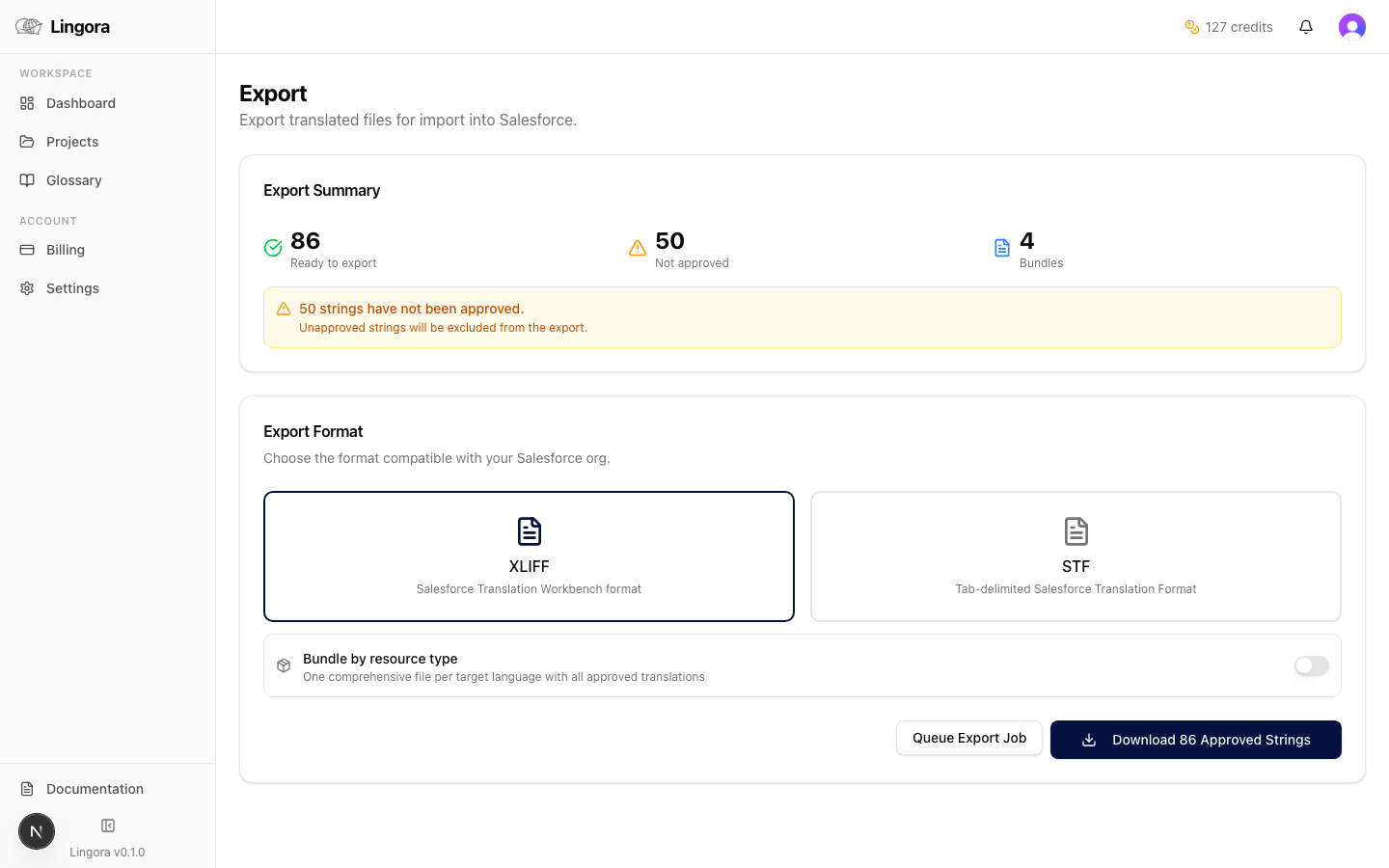
The top of the Export page shows a summary of your project's translation state before you commit to an export:
| Item | Description |
|---|---|
| Total units | The total number of translation units in the project |
| Approved | Units with at least one approved translation candidate — these are included in the export |
| Unapproved | Units that have been translated but not yet approved — shown as a warning; these are excluded from the export |
If unapproved units are present, a warning banner explains that those strings will not appear in the output files. You can return to the workspace to approve them, or proceed knowing those strings will be omitted.
Export Options
Below the summary, configure how the output files are assembled:
Format
Choose the file format for your export:
- XLIFF — standard XML Localisation Interchange File Format. Use this when you intend to import back into Salesforce Translation Workbench manually.
- STF — Salesforce Translation File format. Use this for direct upload to Salesforce or for the direct deploy path (see below).
Bundle by Resource Type
Toggle this option to control how output files are packaged:
- On — Lingora produces separate files per Salesforce resource type (e.g., one file for Custom Labels, one for Picklist Values). Useful when you want to import or deploy selectively.
- Off — All translated resource types are combined into a single output file.
Download
Click the Download button to receive the assembled translation file(s) as a browser download. The files are ready to import into Salesforce Translation Workbench using the standard upload flow.
Known Limitations
Before exporting, be aware of the following edge cases. Lingora surfaces these as warnings on the Export page when they affect your project.
TextTemplate Elements
TextTemplate metadata elements are not supported by Lingora's export assembler. Any strings sourced from TextTemplate nodes are excluded from export output, and a warning is shown listing the affected strings.
Strings Over 1,000 Characters
Strings exceeding 1,000 characters are excluded from the export. These are typically long rich-text blocks or concatenated help text. They are listed in the export warning panel so you can handle them manually.
Whitespace Sanitisation
Lingora automatically sanitises leading and trailing whitespace in translated strings before assembling output files. This is applied silently in most cases but is noted in a notification on the Export page when it affected one or more strings in your project. No action is required on your part.
Flow Rich Text in STF
Flow rich-text strings (HTML-formatted strings used in Flow screen components) can appear in STF exports, but Salesforce rejects them on import because the Translation Workbench does not support HTML content in STF flow fields. These strings are flagged with a warning on the Export page. If you need to deploy flow rich-text translations, use the direct deploy path (Studio/Partner) rather than manual STF import.
Deploy to Salesforce (Connected App Mode)
Availability: Studio and Partner tiers with an active Salesforce connection. See Settings & Engine Configuration for how to set up the connection.
For connected orgs, you can skip the manual download-and-upload cycle entirely. Lingora will assemble, package, and deploy your translated metadata directly to Salesforce via the Metadata API.
Click-path: Export page > Deploy to Salesforce button
Deployment Process
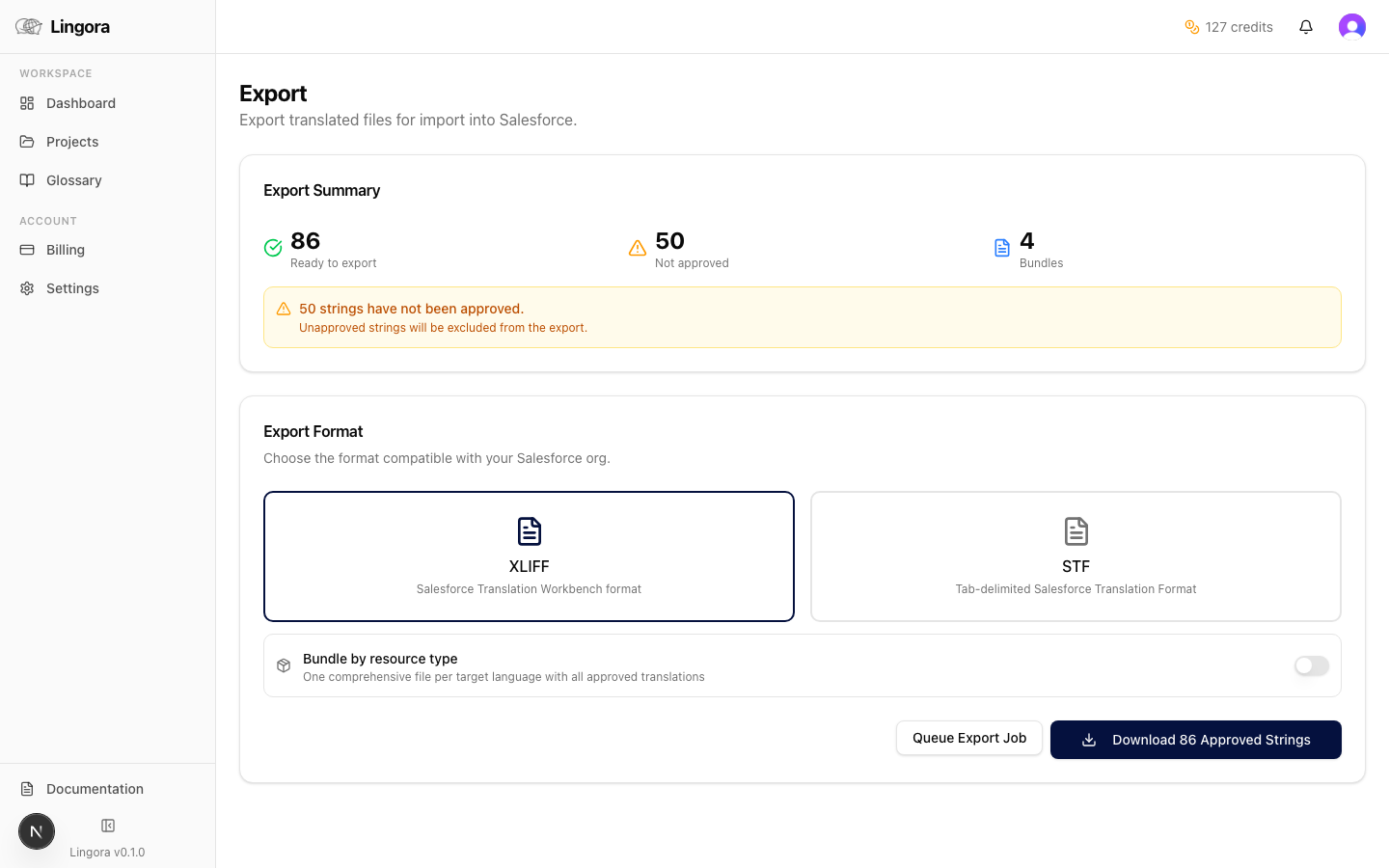
When you click Deploy to Salesforce, Lingora executes the following steps:
- Assembles translated XML files from all approved translation units in the project.
- Builds a deployment zip with the correct Salesforce metadata directory structure — matching the layout expected by
deployZipin the Metadata API. - Submits the deployment to Salesforce with
rollbackOnError: true. This means if any component fails to deploy, the entire deployment is rolled back, leaving your org in a consistent state. - Polls for status asynchronously. Salesforce deployments are queued and processed on their side — Lingora polls the deployment job and updates the Job Monitor in real time.
- Displays results once the deployment completes: success count, failure count, and detailed error messages for any component that failed.
Job Monitor
For larger deployments, processing on the Salesforce side can take from a few seconds to several minutes. The Job Monitor panel (visible on the Export page after triggering a deploy) shows:
- Current deployment status (Queued, In Progress, Succeeded, Failed)
- Progress indicator
- Component-level results once complete
You do not need to stay on the page — the job runs in the background and the status is persisted. You can return to the Export page at any time to check the latest status.
Supported Metadata Types for Deploy
Lingora's deployment assembler supports the following Salesforce metadata types:
| Metadata type | What it contains |
|---|---|
| Translations | Custom Labels, Flow definitions, Quick Actions, Custom Tab labels |
| CustomObjectTranslation | Field labels, field help text, picklist values, record type labels |
| GlobalValueSetTranslation | Translations for global picklist value sets |
| StandardValueSetTranslation | Translations for standard Salesforce picklist value sets |
If your project contains metadata types outside this list, those strings are exported to the download file but are not included in the deploy package. A warning is shown on the Export page identifying any excluded types.
Tips
-
Approve critical strings before deploying. The deployment only includes approved translations. Strings left unapproved are omitted silently — they will not revert or overwrite what is already in Salesforce, but they will not be updated either. Do a final review pass in the workspace before hitting Deploy.
-
Use "Bundle by resource type" for selective deployment. If you only want to push updates for one resource type (e.g., just Custom Labels), enabling this toggle lets you download or inspect the per-type files before deploying, giving you a clear view of exactly what is going out.
-
Keep a backup before deploying. Download the assembled files using the Download button before clicking Deploy to Salesforce. This gives you a local copy of the translated content that you can use to restore manually if needed.
-
Check the Job Monitor for large deploys. Deployments with hundreds of components can take several minutes to process on Salesforce's end. Avoid triggering a second deployment until the first one shows a terminal status (Succeeded or Failed) in the Job Monitor.
-
rollbackOnErroris always on. Lingora deploys with rollback-on-error enabled. If Salesforce encounters a problem with any single component, the whole deployment rolls back. This is intentional — a partial deployment can leave your translation data in an inconsistent state. Fix the flagged errors and re-deploy rather than attempting a partial push.